Using the Activity Trail
Learn how the Activity Trail links related actions together, so your team can follow the full chain of what happened, what was created next, and who was involved.
Thought Process
The Activity Trail was designed to solve a common problem in CRM systems: important actions often happen, but the full journey between them can become difficult to follow later.
A note might lead to a task, a visit might create an opportunity, or an activity might result in a follow-up action for somebody else. Instead of treating each record as a completely separate item, the Activity Trail helps keep those connected actions visible as one linked story.
Why it matters
Staff can understand not just what exists on the account, but how one action led to another and what the real sequence of events was.
Why it helps
This makes handovers easier, reduces confusion, and gives much better visibility when reviewing account progress later.
What the Activity Trail Does
Links related items together
The trail shows how connected records belong together instead of leaving them as isolated entries across different parts of the account.
Shows the sequence of events
Users can review the chain of actions in order and understand what happened first, what followed, and what was created next.
Connects different record types
The trail is designed to work across different types of CRM activity, including activities, visits, tasks, opportunities, and calendar-related actions.
Highlights the selected item
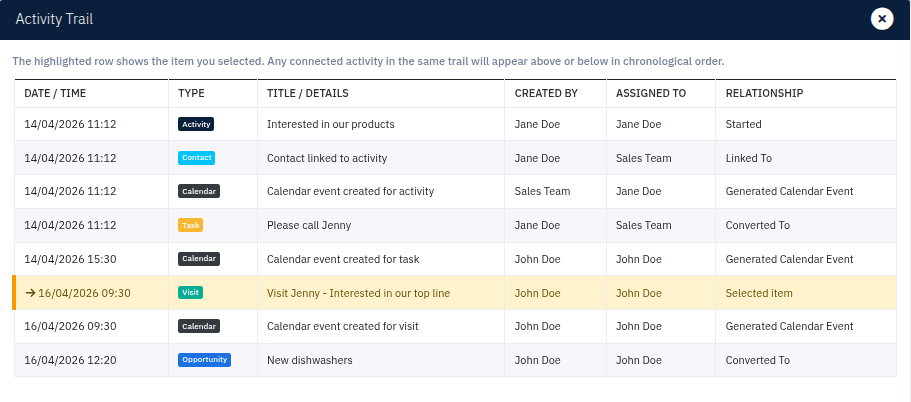
When you open a trail from a specific item, that selected record is highlighted so it is easy to see where you started.
Shows who was involved
The trail helps show who created the item and, where relevant, who it was assigned to as the workflow moved forward.
Makes relationships clearer
Each row helps explain how that item sits within the overall chain, making the relationship between records easier to understand.
What You Can Open a Trail From
The Activity Trail is designed to be opened from the account area when viewing linked work. This includes:
- Activities
- Visits
- Tasks
- Opportunities
This means staff can start from the item they are reviewing and then open the connected trail around that item rather than needing to search manually.
How the Trail Is Displayed
The Activity Trail is shown in a clear table-style view so users can scan the chain of linked actions quickly.
Date / Time
Helps show when each linked record was created or recorded within the chain.
Type
Each row shows what kind of item it is, such as an activity, visit, task, opportunity, or calendar-related item.
Title
The title helps identify the record more clearly without needing to open each one individually first.
Created By
Makes it easier to see who originally logged or created the record.
Assigned To
Where relevant, the trail can also show who the next action or linked record was assigned to.
Relationship
This helps explain how that item connects into the wider chain rather than just listing it as another disconnected record.
Seeing the Full Story Around the Account
The real value of the Activity Trail is that it helps users see the full story around work that has taken place on the account.
For the person doing the work
It helps confirm that the correct next steps were created and that the linked actions make sense when reviewed later.
For other staff and managers
It makes it much easier to understand the account journey without having to jump through multiple separate areas of the CRM.
Simple Walkthrough
- Open the relevant account.
- Go to the item you want to review, such as an activity, visit, task, or opportunity.
- Choose the option to view the Activity Trail.
- Review the linked rows shown in the trail.
- Use the highlighted row to identify the record you started from.
- Follow the surrounding linked items to understand what happened before and after that action.
Getting the Most From the Activity Trail
Use it when reviewing follow-up work
The trail is especially useful when you need to understand how a task, visit, or opportunity was created and what it was linked to.
Use it for handovers
When work moves between staff members, the trail helps others understand the chain more quickly.
Check relationships, not just titles
The relationship column can often explain more than the title alone, especially when several linked actions exist on the same account.
Use it to confirm next-step flow
It is a helpful way to check whether an action really led to the right next step in the workflow.
Start from the highlighted item
The selected row gives you the best anchor point for understanding the rest of the trail around it.
Use it instead of jumping around the account
The trail can often give a clearer picture more quickly than opening several separate accordions or sections one by one.
Activity Trail Screen Example