Lock Screen Guide
Learn how to quickly secure your CRM session when stepping away, without fully logging out of the system.
What Is the Lock Screen?
The Lock Screen allows you to protect your active CRM session while keeping your work open in the background.
Instead of fully logging out every time you leave your desk, you can lock the CRM and return by entering your password. This helps protect customer information while keeping your workflow simple.
Why use it?
It prevents anyone else from accessing the CRM while your session is still active.
When to use it?
Use it whenever you step away from your computer, especially in shared offices or busy working environments.
Locking Your Session
- Click your profile menu in the top-right of the CRM.
- Select Lock Screen.
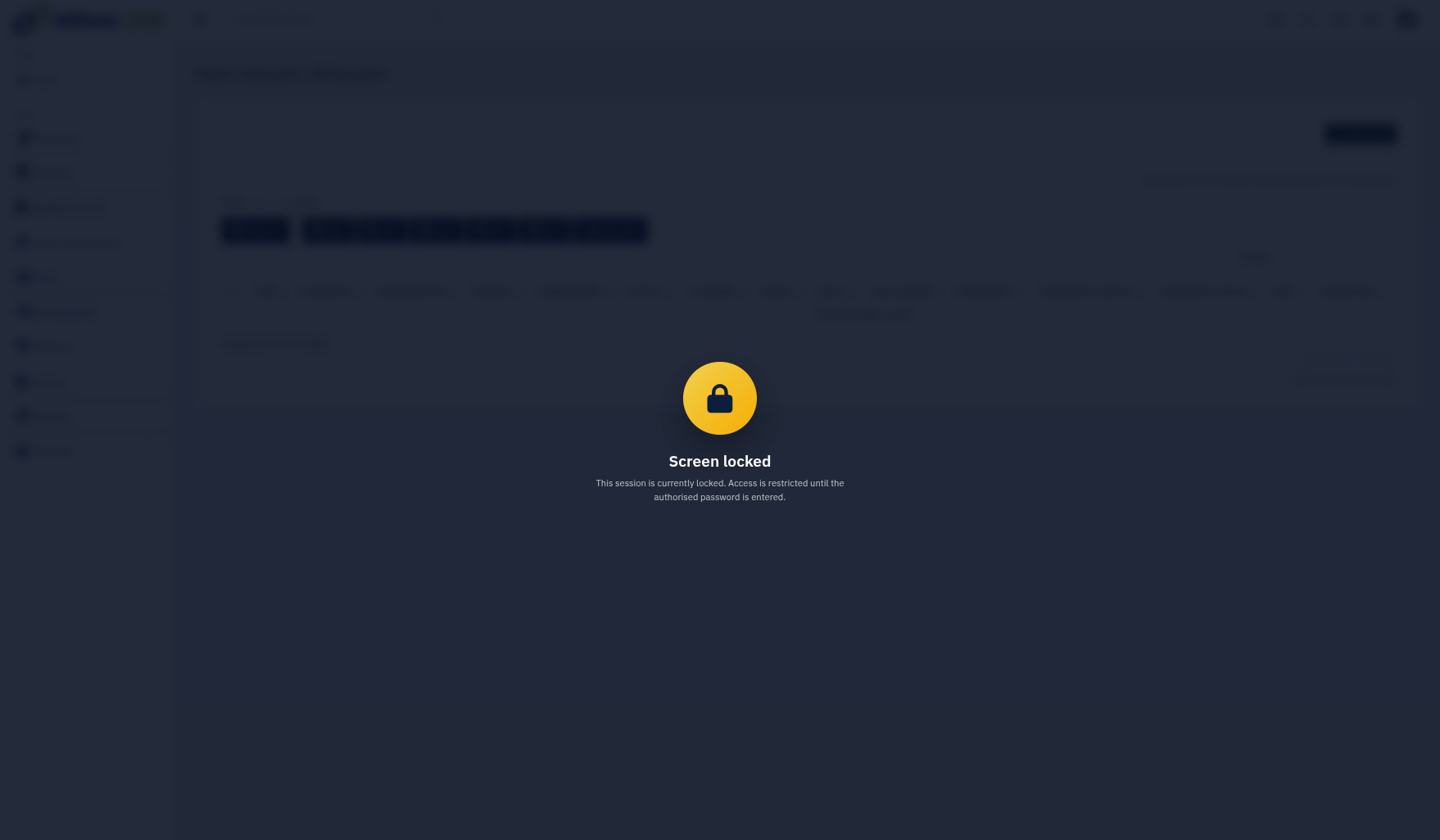
- Your CRM session will immediately be locked.
- The lock screen will appear and ask for your password.
Returning to the CRM
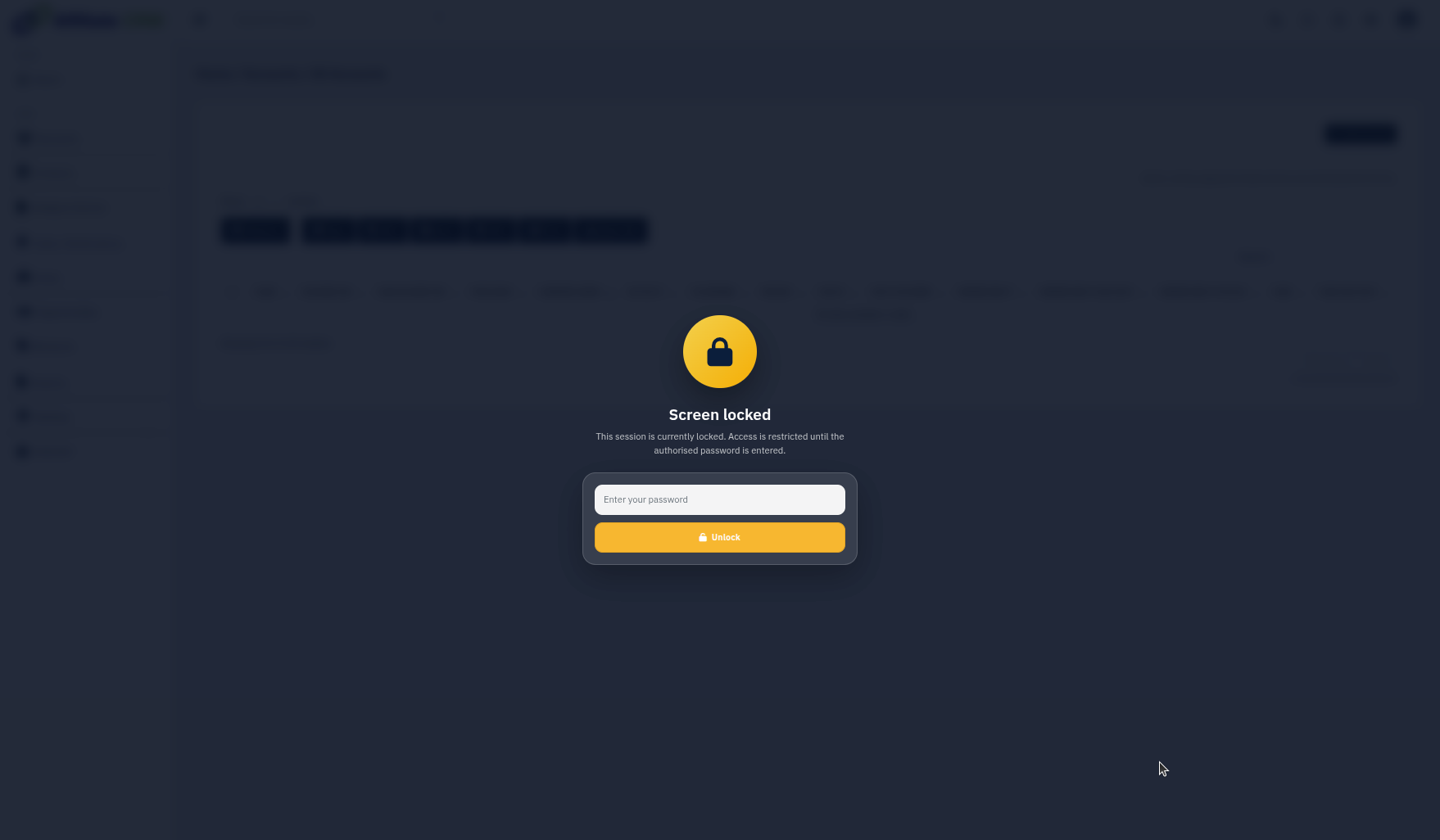
When you are ready to continue working, enter your password on the lock screen and click Unlock.
Once unlocked, your CRM session is restored and you can continue working without needing to fully log back in.
Why We Designed It This Way
Many systems force users to either stay logged in or log out completely. Neither option is ideal when you only need to step away briefly.
Security
The lock screen protects customer data from being viewed or changed by someone else while your session is open.
Convenience
Users can return quickly without having to reopen the CRM, navigate back to pages, or restart their workflow.
What the Lock Screen Helps With
Better security
Protects customer and company information when users leave their desk.
Faster return
Unlocking is quicker than fully logging out and logging back in again.
User control
Each user secures their own session using their own password.
Data protection
Helps reduce the risk of unauthorised access to account information.
Best Practice
Lock before leaving
Lock the CRM whenever you leave your desk, even for a short time.
Use in shared offices
Ideal when other staff, visitors, or customers may be nearby.
Keep passwords private
Only your own password should be used to unlock your session.
Use it instead of logging out
For short breaks, locking is quicker and keeps your workflow intact.