Using Opportunities
Learn how Opportunities help your team track progress, manage stages, record values and keep all relevant information in one clear and accessible place.
Thought Process
The Opportunities section was designed around one key question: how do we track an opportunity clearly, make it easy to view, edit and add to, and always know which stage it is currently sitting at?
What this area needs to do
- Show the current stage of each opportunity clearly.
- Make opportunities easy to add, edit and review.
- Keep important details and values in one place.
- Support day-to-day use without becoming complicated.
Built with flexibility in mind
We also considered the relationship between Tasks and Opportunities. In some businesses the task comes first, while in others the opportunity is created first and tasks follow afterwards.
Because different teams work differently, the system has been designed with flexibility at the forefront.
Our Reasoning / Result
Opportunities can easily become complicated for users, especially when they involve stages, values, dates and follow-up actions. The aim here was to create an opportunity area that remains simple to use while still giving you complete clarity.
Affiliate CRM has been designed so this area can aid, remind and reassign, while still allowing in-depth information to be stored where needed.
Clear Overview in the Left-Hand Column
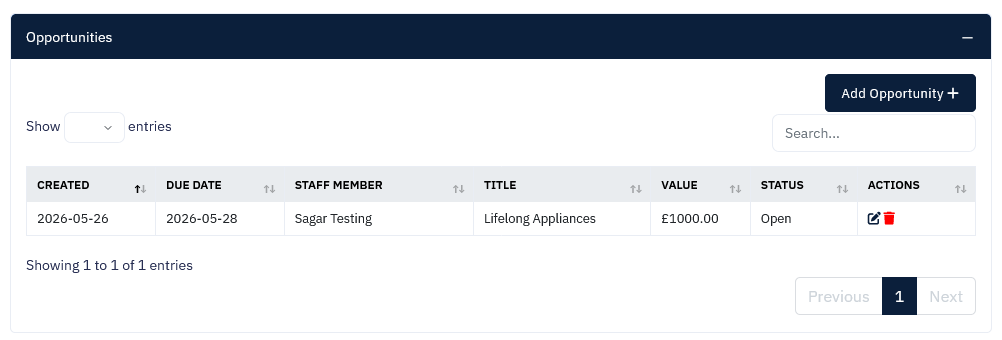
Opportunities automatically feed into the left-hand column so you can review your full list in one place, including who the opportunity relates to, what it is, and the value attached to it.
Direct Access to the Account
From the opportunity list, simply click on the name to go directly to the individual account page for more detailed viewing and further action.
We believe the workflow could begin with either a Task or an Opportunity, which is why the system was built to support both approaches rather than forcing users into just one way of working.
What This Helps You Achieve
- Track the stage of each opportunity more clearly.
- Keep values, details and progress in one place.
- Review the full opportunity list quickly from the left-hand column.
- Support different workflows depending on how your team operates.
- Move from overview to detailed account information with a single click.
Getting the Most From Opportunities
View Staff Progress Quickly
If you need a snapshot of an individual staff member’s progress in Opportunities, use the left-hand column to select and review the overview lists.
Check Dates, Values and Stages
Within the overview lists you can quickly check due dates, opportunity values, and the current stage of each opportunity without needing to dig through multiple screens.
Use the Overview as a Working List
The left-hand opportunity list is not just for viewing. It works well as a practical daily overview to help staff stay on top of what is active, what is due and what needs attention.
Keep Everything Together
Add the value and supporting details directly to the opportunity so all key information stays together and remains easy to reference later.