Using Search
Learn how the main search helps you find accounts and related records quickly, making it easier to move around the CRM without needing to remember exactly where everything lives.
Thought Process
Search is one of the most important parts of a CRM. Staff often know a company name, account number, postcode, contact name, or just part of a detail they remember, but they do not always know exactly where that record sits within the system.
The search area has been designed to make that process easier by giving users one central place to begin. Rather than opening several sections one by one, the search can help bring matching records back together on a single results page.
Why it matters
Fast searching reduces wasted time and helps staff get back to the right account or contact much more quickly.
Why this helps
A good search works as a shortcut into the CRM and helps staff move around the system in a more natural way.
What the Main Search Does
Search accounts
The main search can help find accounts when you know something such as the company name, account number, postcode, or address details.
Search contacts
It can also help bring back matching contact records so users can find the right person as well as the right account.
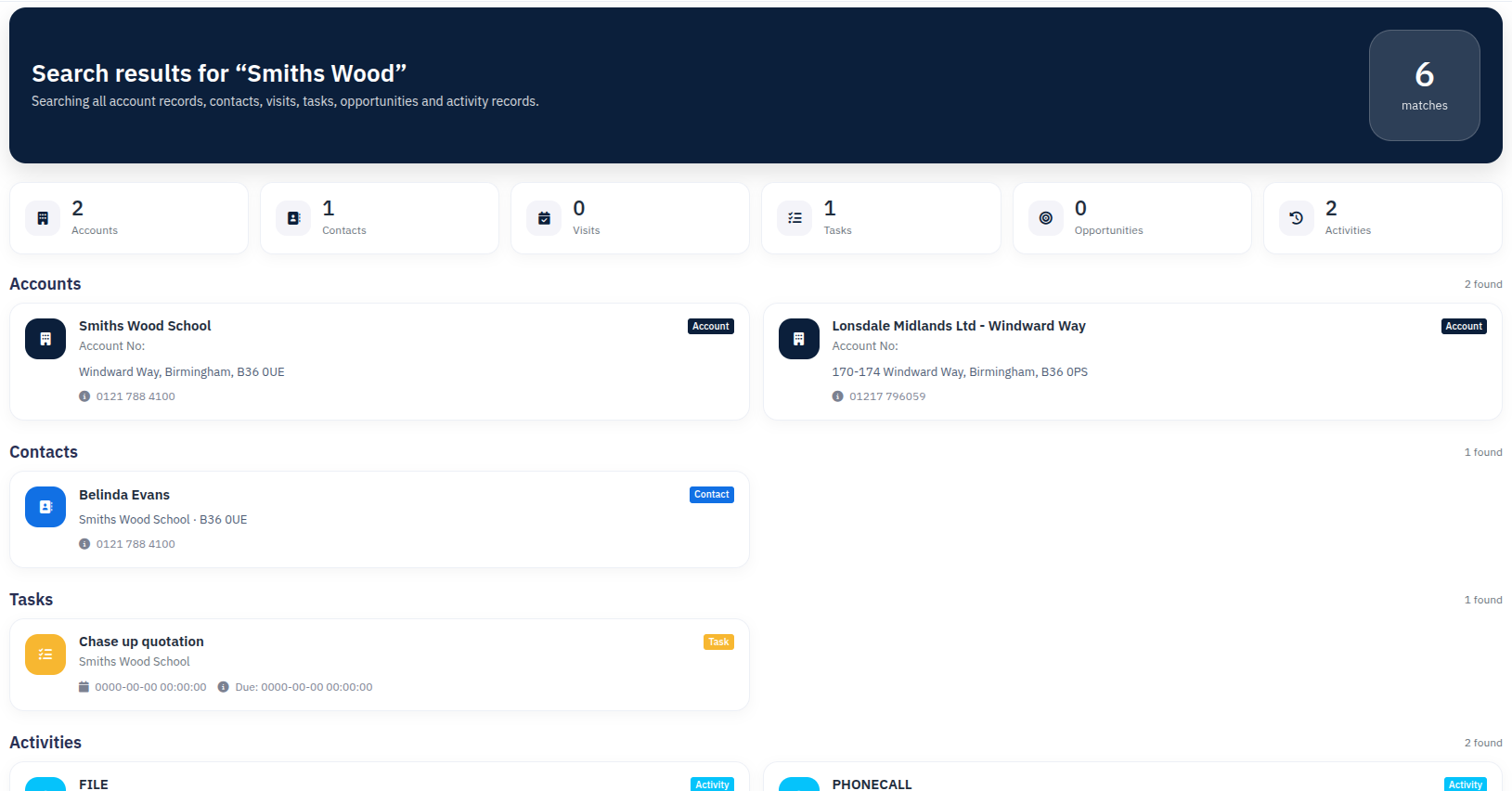
Show grouped results
Results are presented in clear sections so users can quickly see what has been found in accounts and what has been found in contacts.
Take you into the record
Once the right result is found, you can go straight into the linked account page without needing to search again elsewhere.
Work with partial details
Search is useful even when you only remember part of a name, number, or location detail rather than the full exact value.
Open single matches quickly
If the search finds just one clear account result, the system can take you straight into that account to save time.
Examples of Useful Search Terms
Account-based searching
- Company name
- Account number
- Sub account number
- Postcode
- Telephone number
- Address details
- Town or county
Contact-based searching
- First name
- Last name
- Full contact name
- Email address
- Telephone number
- Mobile number
How the Search Experience Feels
The search box is available from the main CRM header, so it is easy to reach from different pages throughout the system.
Start from the top bar
Enter the detail you want to search for in the main search area at the top of the CRM.
Review the result sections
The results page helps separate what was found, making it easier to scan quickly.
Open the correct result
Once you find the correct record, click through to continue working on it.
Refine if needed
If the first search is too broad, try a more specific detail such as postcode, account number, or full company name.
Simple Walkthrough
- Go to the main search box in the CRM header.
- Enter the account, company, postcode, contact name, or other known detail.
- Run the search.
- Review the accounts section first if you are looking for a business record.
- Review the contacts section if you are searching for a person.
- Click the correct result to open the linked account page.
Getting the Most From Search
Use account numbers where possible
Account numbers are often the quickest way to get to the exact result you want.
Postcodes are very useful
If several companies have similar names, postcode searching can narrow things down quickly.
Try the person first
If you do not remember the business exactly, searching by contact name can still get you back into the right account.
Use a more specific phrase if needed
Broad searches can bring back more than one match, so adding an extra detail can help you get there faster.
Main Search Example