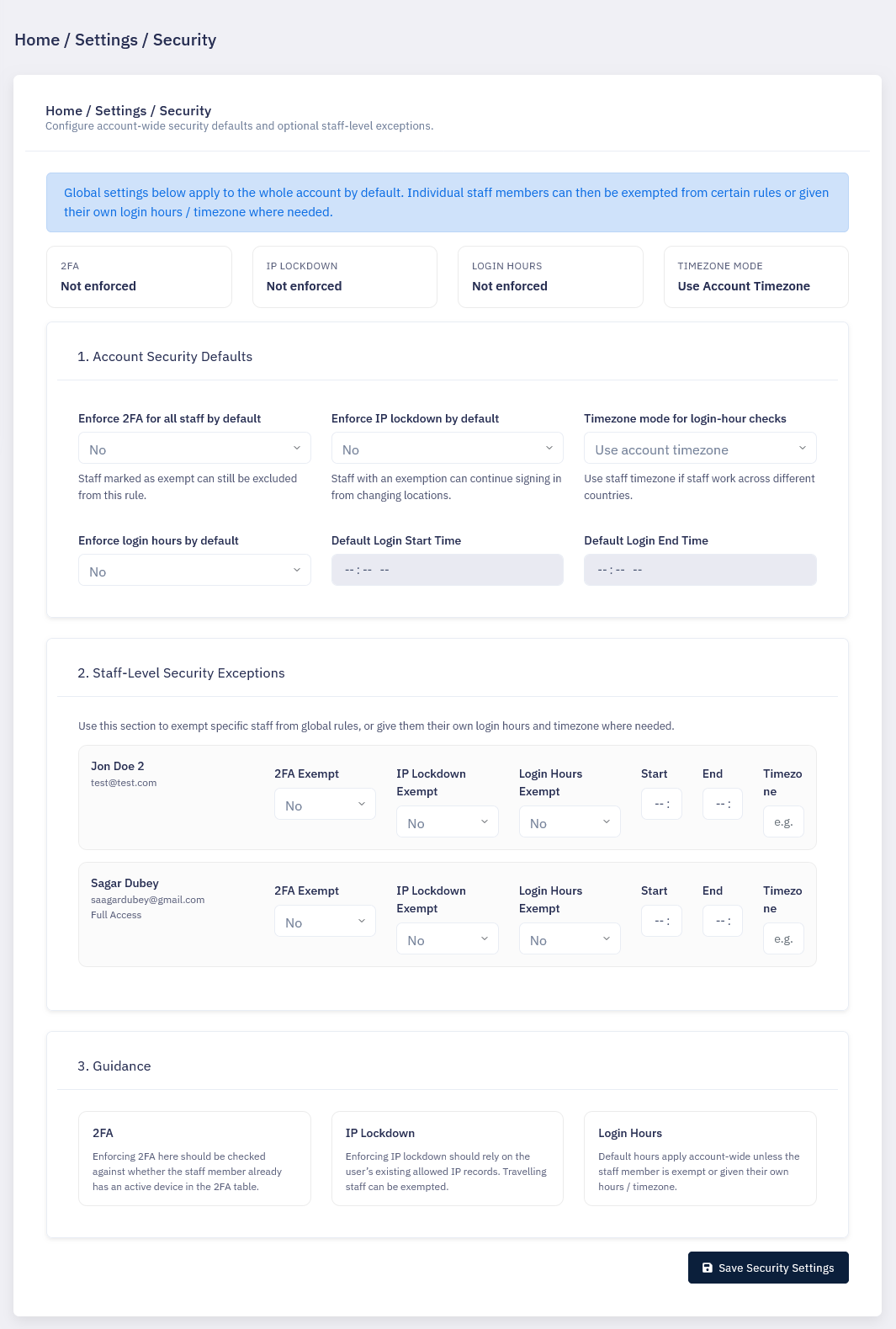
Settings: Security
Learn how the Security section lets you apply account-wide protection rules, while still allowing staff-level exceptions where individual users need a different setup.
Thought Process
Security is one of the most important areas in the CRM because it affects how staff gain access to the system and how the business protects its data. The challenge is that security needs to be strong, but also practical.
Some settings need to apply to everybody by default, so the business has a clear baseline. At the same time, not all staff work in exactly the same way. Some may be in another timezone, some may work remotely, and some may be regularly on the road where their IP address changes more often.
That is why the Security section is designed in two layers: global defaults for the whole account, and individual staff-level overrides where genuine exceptions are needed.
Why global defaults matter
Account-wide rules help the business create a consistent security baseline so protection is not left to chance.
Why staff overrides matter
Individual exceptions make the system more workable in real life, especially for staff working in different locations or changing environments.
Global Default Rules
Enforce 2FA
Two-factor authentication can be enforced as a default across the account so all staff who log in must use an extra verification step.
Enforce IP lockdown
IP lockdown can be enabled so only approved IP addresses or approved login locations are allowed to access the CRM.
Enforce timezone login hours
Login hours can be restricted so staff may only access the CRM within the allowed time window for the business.
One security baseline
These default settings help the organisation decide what “normal” secure access should look like for all staff by default.
Individual Overrides and Exceptions
Not every staff member works under the same conditions. Some may work in a different timezone, some may travel, and some may connect from changing networks while out on the road. Because of that, the CRM can allow individual staff-level security exceptions where needed.
Per-user overrides
A specific member of staff can be set to follow different rules from the global defaults where an exception needs to be applied.
Different timezone working
A staff member based in another timezone may need different allowed login hours from the main office default.
Road users and changing IPs
Staff working on the road may move between networks regularly, so a strict IP rule may need to be relaxed or handled differently for them.
Practical access control
The aim is to keep security strong without blocking legitimate staff from doing their jobs in real working conditions.
Recommended Structure
Step 1: Set account defaults
Start by deciding the normal security position for the business. This usually means choosing whether 2FA is required, whether IP lockdown should be active, and whether login hours should be restricted.
Step 2: Apply staff exceptions
Once the defaults are in place, individual staff can be reviewed and exceptions applied only where the standard rules would cause genuine problems.
Simple Walkthrough
- Go to Settings.
- Open the Security section.
- Choose the account-wide defaults for 2FA, IP lockdown, and timezone-based login hours.
- Save the global settings so they apply as the default position.
- Review staff members who log in to the CRM.
- Apply individual overrides only where a member of staff genuinely needs an exception.
- Save the staff-level changes so their access rules reflect their working setup.
Getting the Most From Security Settings
Start strict, then relax only where needed
It is usually better to create a strong default position first, then apply exceptions carefully rather than starting too open.
Document why exceptions exist
If a staff member has a security override, make sure there is a clear reason so the setting still makes sense later.
Think about road-based staff differently
Users who travel or change networks often may need a more flexible IP setup than office-based staff.
Use login hours sensibly
Time restrictions can be useful, but they should reflect the real working hours of the people using the system.
Use 2FA wherever possible
Two-factor authentication is one of the strongest practical protections, so it is often worth keeping as standard wherever users can support it.
Review overrides regularly
A user who needed an exception last month may not need it forever, so it is worth reviewing staff-level overrides from time to time.
Security Screen Example