Using Tasks
Learn how Tasks help your team share information, assign responsibility, set reminders and keep track of account-related actions across the CRM.
Thought Process
Communication is key. The Tasks feature has been designed to make it easy to share information, assign actions to other people, or simply set reminders for yourself.
How Tasks can be used
- Send yourself a reminder for something important.
- Reassign work relating to an account to another member of staff.
- Share information internally using tasks and notifications.
- Use tasks before a visit, after a visit, or as part of your daily workflow.
Built for flexibility
Tasks are designed to work in the way that suits you and your team best. Whether you need a quick reminder, an action to follow up, or a way to hand something over internally, the feature is there to support your workflow.
Our Reasoning / Result
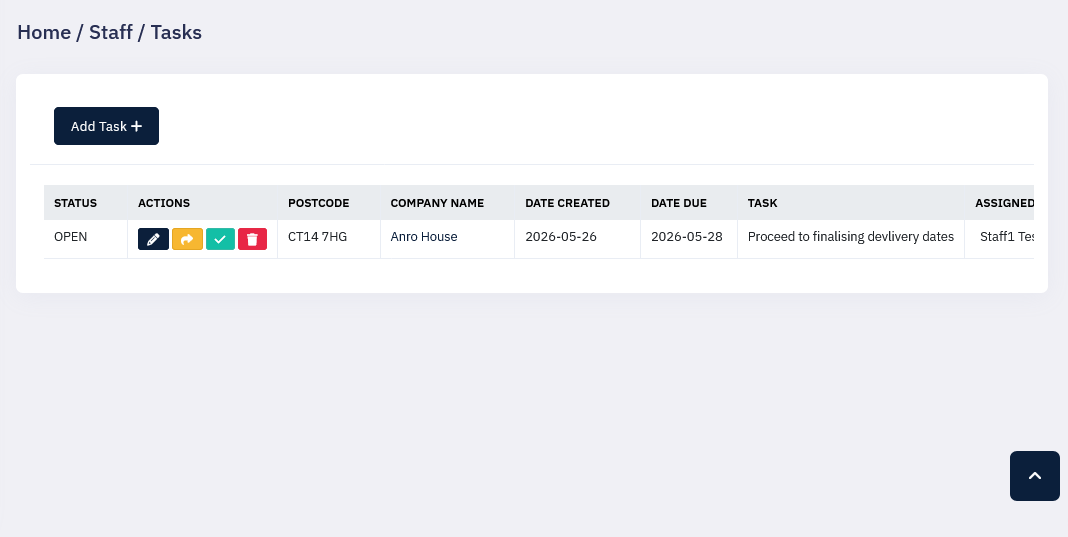
Sometimes you need to bring someone else into the loop, and sometimes you need to completely reassign the task to another member of staff. The Tasks feature was built to make that process simple and visible.
Information is stored so it can be viewed through the system, and users can click the relevant icon to view, amend or delete a task if an error has been made.
Share or Reassign
Tasks are not only for passing work from one person to another. They can also be used to keep people informed, provide context, or bring someone else into an ongoing piece of work.
Track Dates and Status
Keeping track of dates, timelines and statuses such as completed or pending helps users stay organised while still keeping the feature easy and practical to use.
We wanted this to remain a user-friendly tool, not just a monitoring tool. It exists to remind, support and provide flexibility, including the ability to move dates when plans change.
What This Helps You Achieve
- Improve communication across the organisation.
- Assign actions clearly to the right member of staff.
- Keep track of reminders, timelines and task status.
- Make account-related follow-up easier to manage.
- Reduce the chance of important actions being overlooked.
Getting the Most From Tasks
Staff Names Are Ready to Use
Once staff members have been created in the system, their names are already available in the Assign To field when creating a task. This makes delegation and internal communication quicker.
Set Reminders
Use reminders to make sure important actions are not overlooked or forgotten. This is especially useful for follow-ups, deadlines and account-related actions that need to happen on time.
View Tasks in Multiple Places
Tasks can be viewed in four places across the system, including the left-hand column, the task accordion on the individual account page, the top of page task list, and the home page wheel for an overview.
Move Dates When Needed
Plans can change, so tasks are designed to give you flexibility. Update dates and timelines when needed without losing the history and context of the task itself.